
Key Takeaways:
- Purpose-Driven: History displays turn milestones, people, and achievements into a visible story that builds pride, preserves legacy, and helps organizations connect with their audience.
- Universal Need: Schools, counties, hospitals, and corporations all use visual history to preserve identity, honor contributors, and make their mission tangible.
- Modern Flexibility: Modern history walls can be physical, digital, or hybrid, making updates to names, photos, and timelines much easier.
- Expert Partnership: Arreya designs and builds custom history displays across education, civic, healthcare, and corporate environments, merging art and engineering.
- Long-Term Value: A history display should be treated as a long-term strategic asset, much like a brand standard or logo.
Why visual history matters
History displays are intentional, permanent or semi-permanent installations—such as a school history wall, county exhibit, corporate timeline wall display or museum exhibitry—that turn abstract dates, artifacts, and people into a coherent, visible story. From a dynamic lobby panel to expansive 60-foot long walls, these installations preserve an organization’s history, orient newcomers, and keep founding values front and center.
Rather than serving as mere decoration, a well-designed timeline wall acts as a strategic communication tool. Every institution has a rich heritage, but as time passes, key moments, significant dates, and the people who drove them can easily fade from memory.
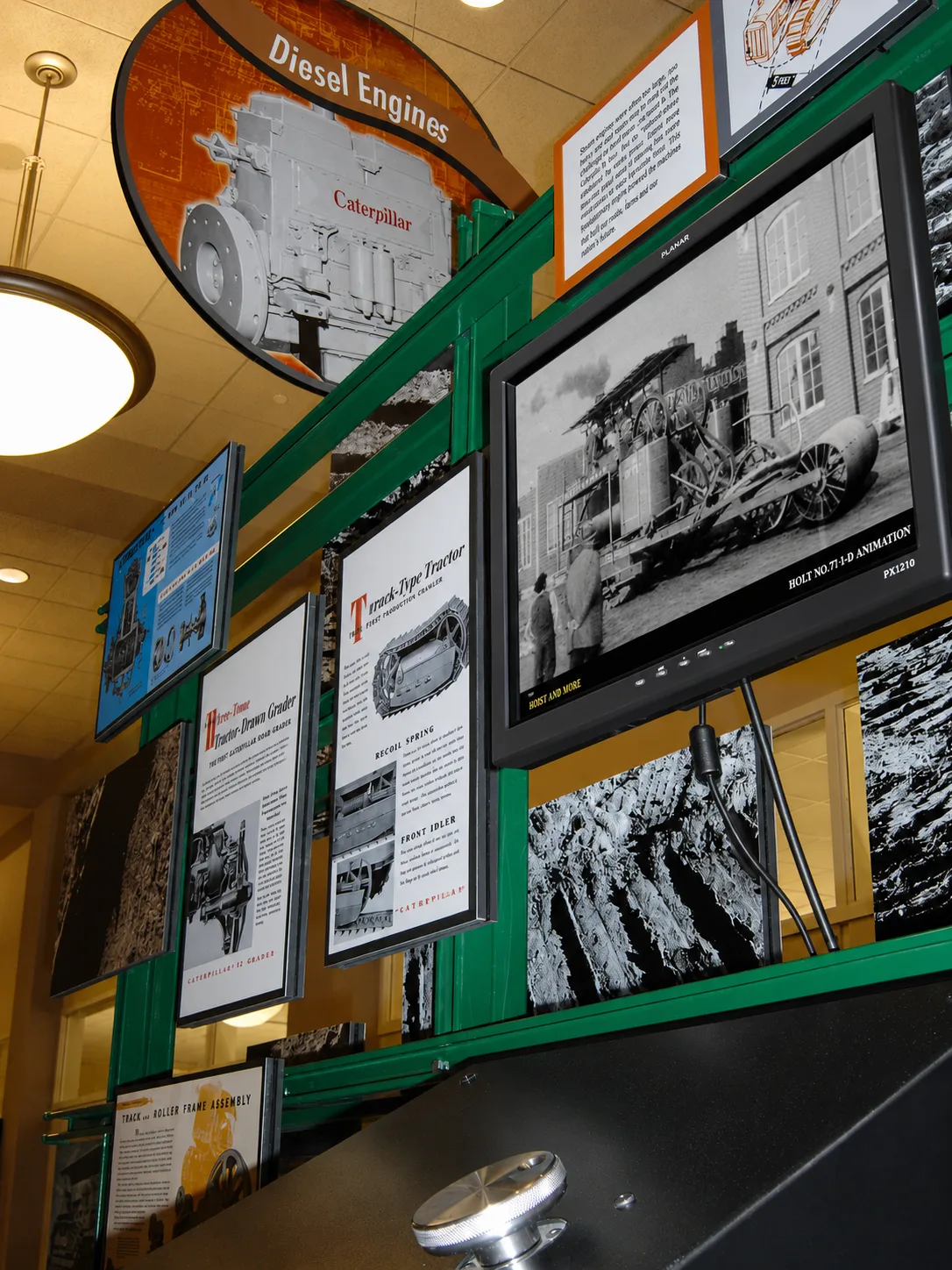
By bringing the past into the present, visual history bridges that gap. It transforms dusty archives and forgotten milestones into an engaging display element that communicates a powerful narrative directly to your community. Modern visual history is designed to bring people in, creating spaces of inclusion, celebration, and shared legacy that remind employees, students, and visitors exactly what your organization stands for.
What makes a display memorable
A memorable history wall combines a clear narrative arc with high-quality visual materials and an intuitive structure that invites curiosity. Creating a history wall involves building a timeline that highlights significant milestones relevant to the organization and its community.
A strong timeline wall is not a cluttered collage; it uses key moments, significant dates, and relevant content to seamlessly connect the past, present, and future. As a full-service creative design and build firm, Arreya understands that the design process must serve the story first. Our in-house fabrication team utilizes a wide combination of materials to bring your vision to life, including:
- Acrylics: acrylic panels, dimensional acrylic panels, acrylic panels suspended, cleated acrylic panels, pucked acrylic, pucked acrylic mounted, and mufti layered acrylic.
- Dimensional Textures: cleated dimensional panels, cleated dimensional panels engis, painted dimensional letters state milestones, and other dimensional elements.
- Fabrics & Canvas: fabric wallcovering, custom printed fabric wall, printed seamless wallcovering, seamless printed wall covering, and durable canvas wall covering.
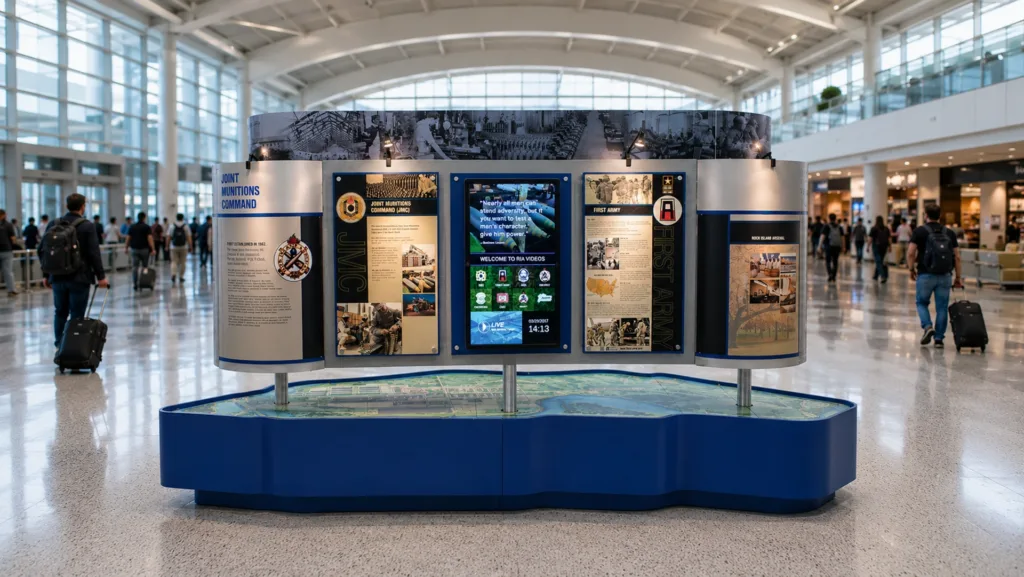
Schools and alumni memory
School history walls and hall of fame display projects carry institutional memory across generations, connecting current students to past achievements. A typical school installation may include class photos from the 1950s forward, mascot evolution, campus expansions, state championships, and alumni achievements.
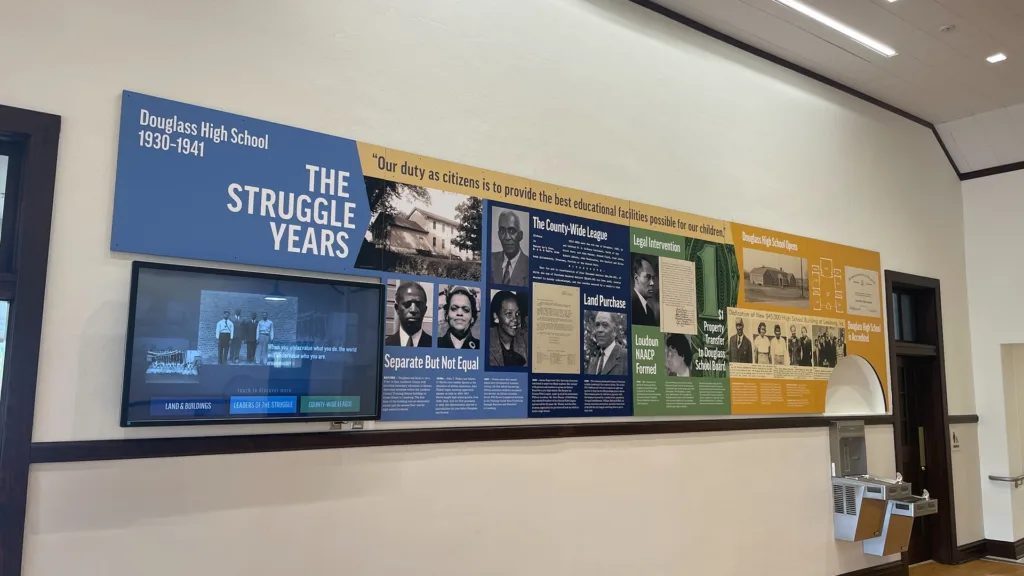
Loudoun School District is a strong example of how visual history can actively preserve alumni memory. A district-wide visual history display connects founding dates, consolidation milestones, civil rights history, and growth in STEM and athletics. By placing an alumni recognition wall beside the broader school history wall, schools can show exactly how individual achievement fits into the larger institution.
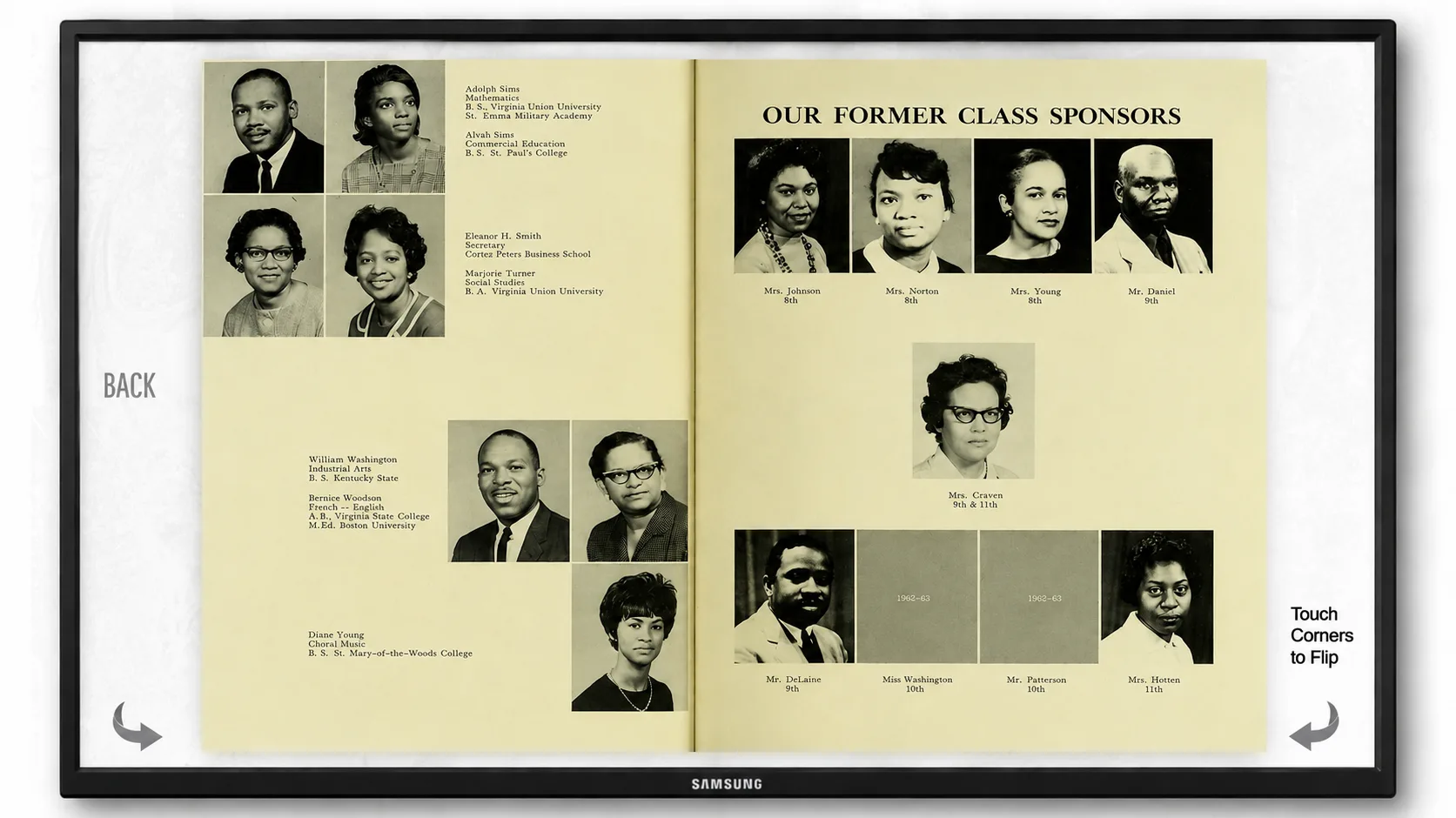

Why yearbooks still matter
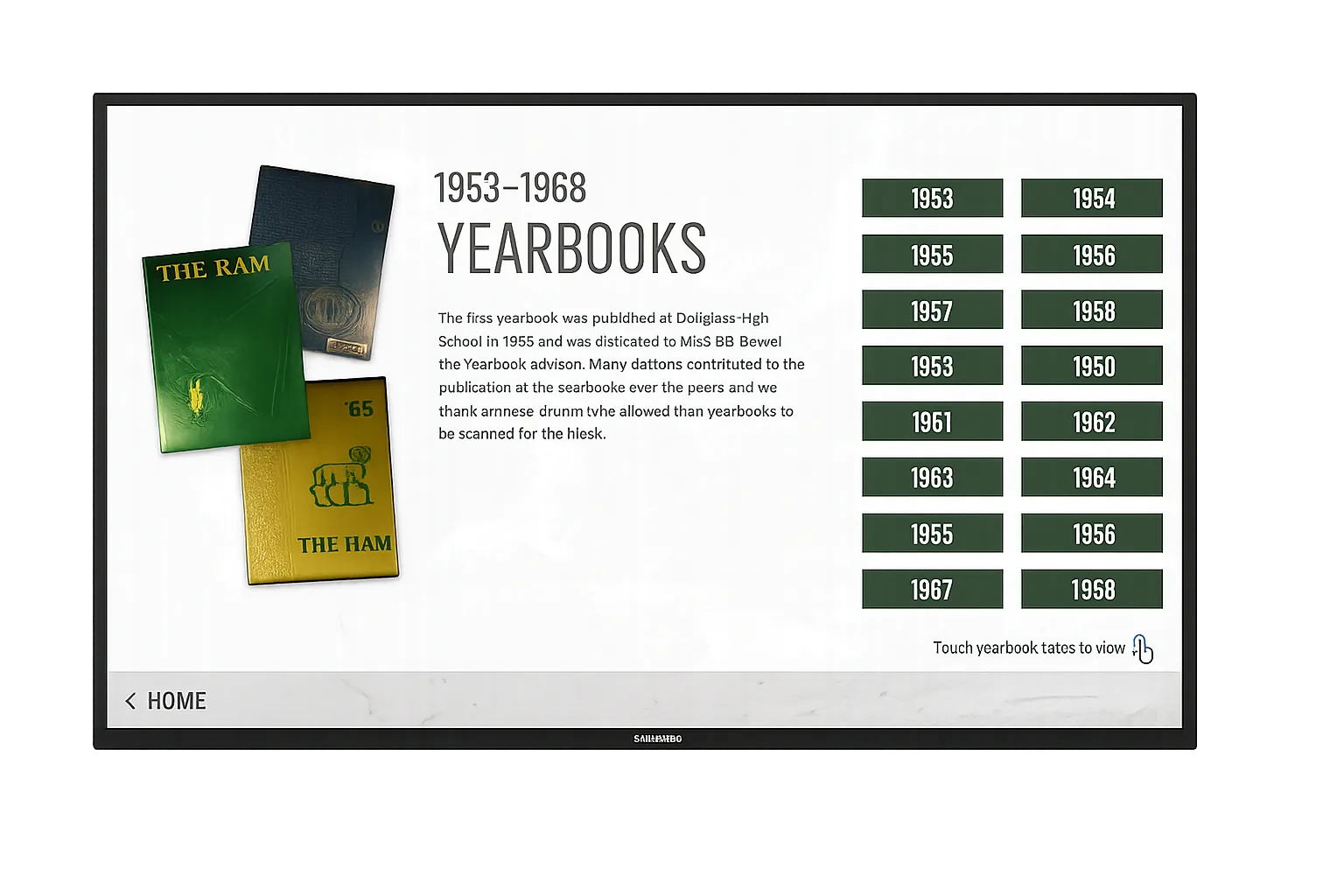
Yearbooks remain one of the richest archives for visual history because they capture the authentic daily life of a school community. They remain in a closet, or risk getting lost in fire or flood. Scanned senior portraits, club pages, theater school programs (like depaul theater school archives), and early theater life photos can become highly searchable content on a digital history wall.
By utilizing digital and hybrid formats, schools can add captions, alt text, and multilingual content to these yearbook memories. Arreya’s digital signage software allows administrators to easily rotate reunion features, seasonal athletics content, or class spotlights without ever running out of physical wall space.
County history and civic identity
County history displays preserve local heritage by turning archival records and artifacts into public storytelling spaces. A county history display often serves as the cultural centerpiece in a courthouse lobby, visitor center, museum, or administration building.
Martin County and Prince George County show exactly how civic identity can become approachable visual history. These displays explore themes like founding dates, native americans records, agriculture, transportation, places buildings, and cultural landmarks, serving residents, tourists, and civic leaders alike. WATCH THE TIMELAPSE INSTALL
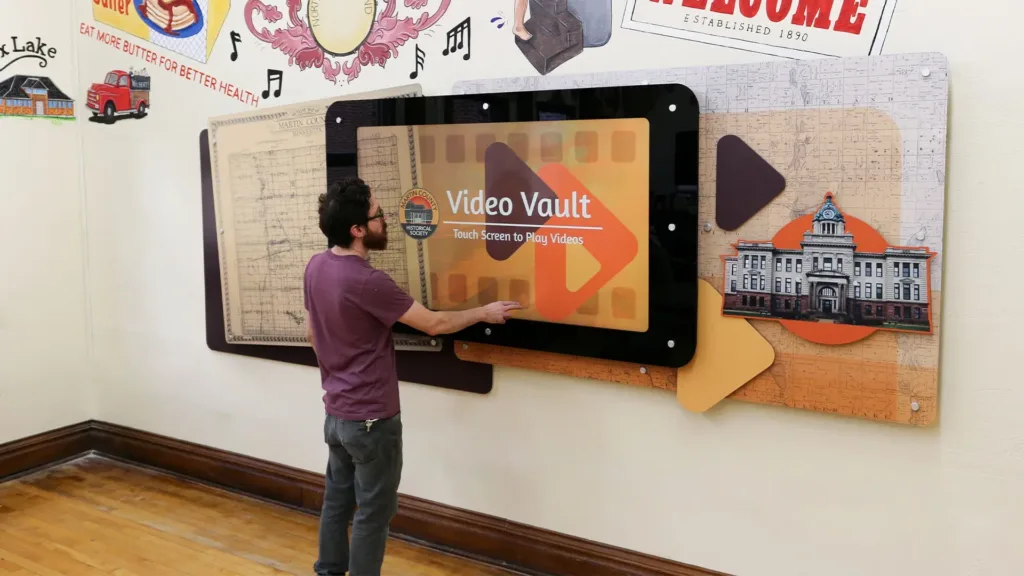
How civic history becomes public storytelling
Civic or state history becomes public storytelling when dense archival records are transformed into engaging, large-scale visual narratives. Using large-scale maps, then-and-now photos, first-person quotes, and authentic artifacts enhances community engagement and provides a tangible connection to the past.
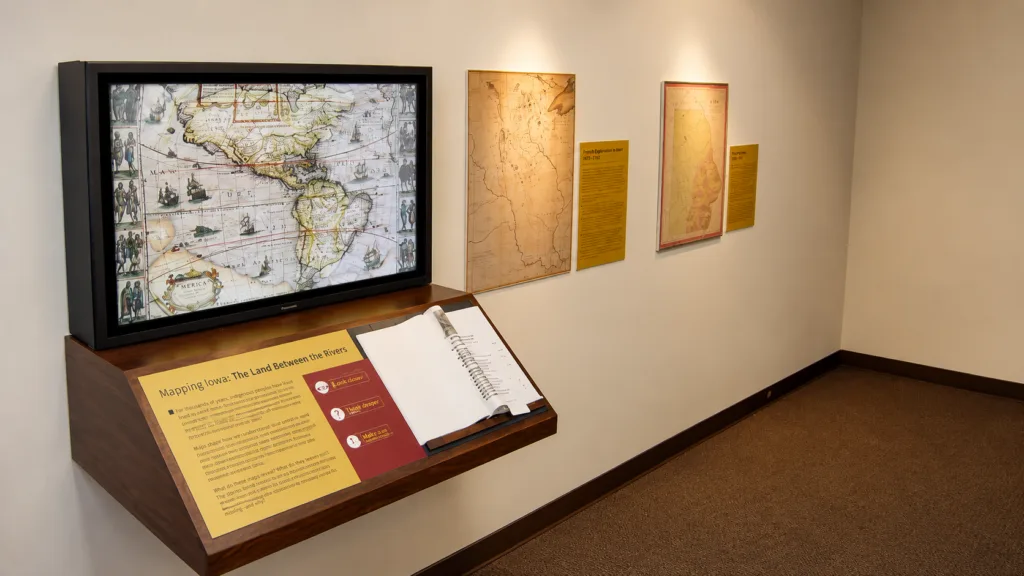
A digital display allows communities to rotate deeper, varied stories—such as local veterans, the evolution of main streets, the history of new amsterdam or pearl street, or even educational modules on the roman general sulla or the xerxes invasion—without needing more physical space.
Corporate History Timelines and Legacies
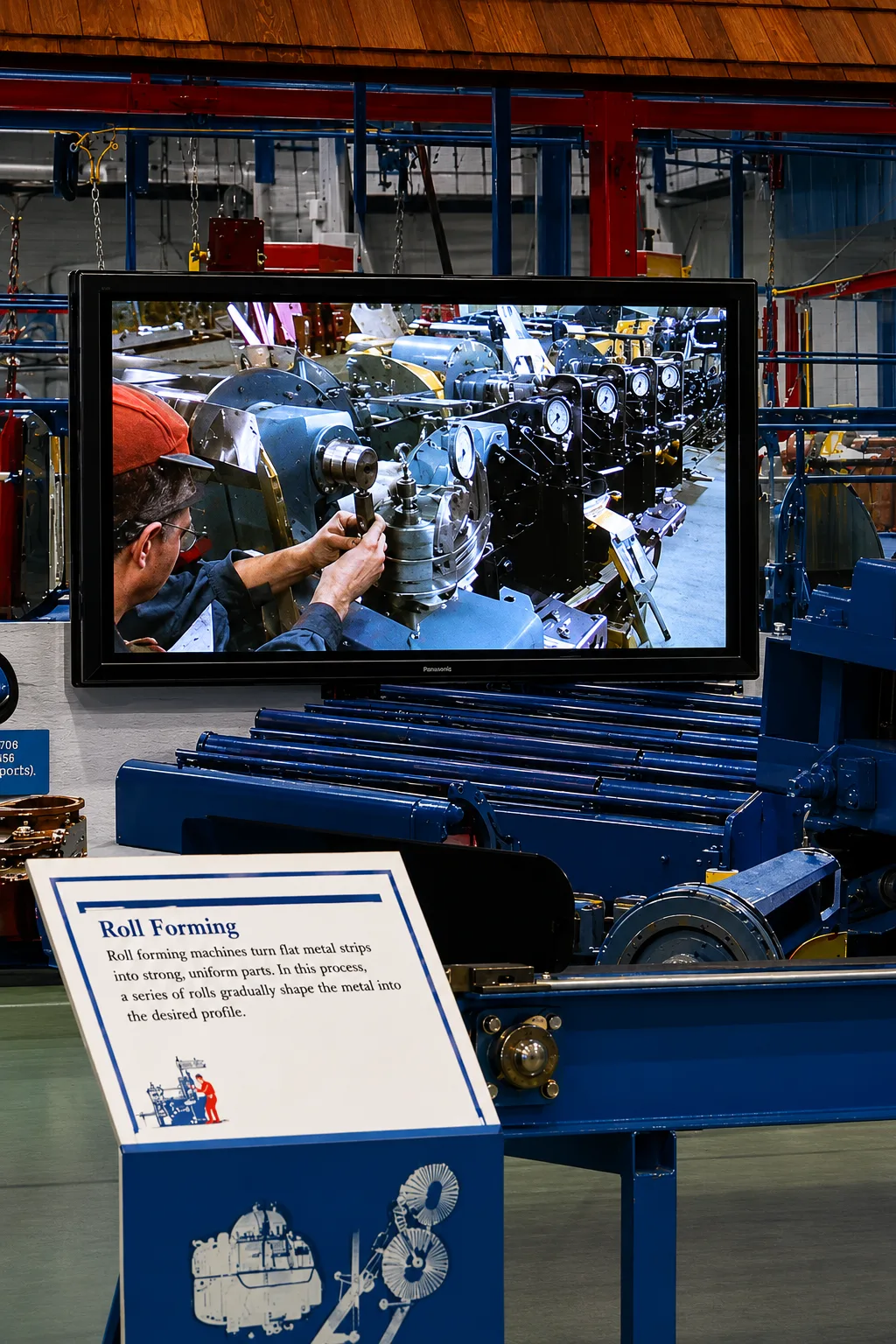
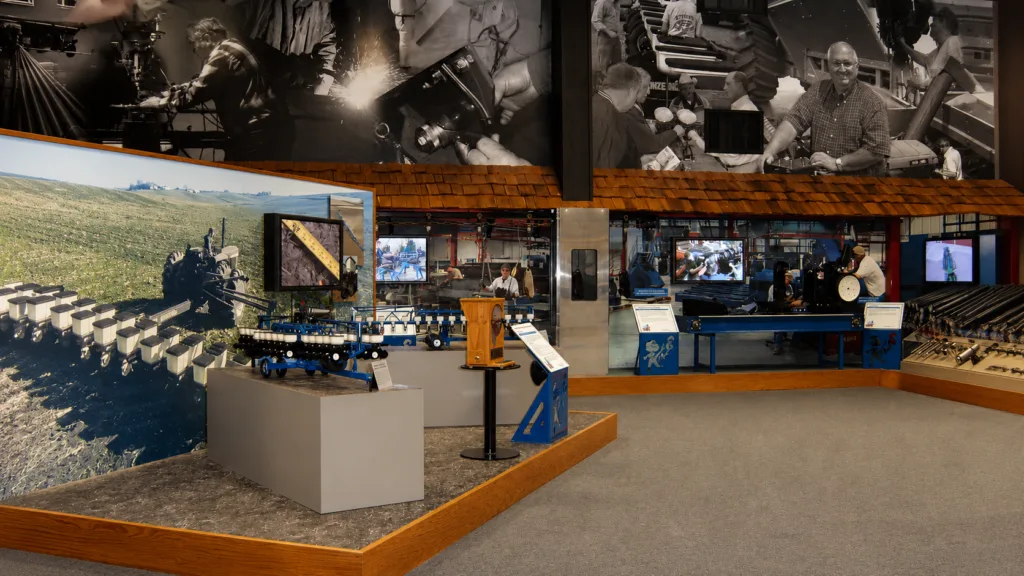
Corporate timeline displays translate an organization’s milestones, product launches, and culture into a tangible narrative that reinforces brand identity. A company history timeline wall serves as a visual representation of key moments in an organization’s development, transforming everyday spaces into storytelling tools.
Kenworth, Caterpillar, and Peterbilt are natural examples for manufacturers, utilizing long walls to track product evolution and factory growth from the 1920s to today. This narrative approach works across all sectors, whether it’s a foods corporation timeline wall, a Walgreens history wall, a Rand Whitney display, or a new york stock exchange history installation. Healthcare institutions also benefit; Hunterdon Hospital uses a timeline to connect medical advances and community partnerships, while similar projects might reference Northwestern Prentice hospital photos or track a new building construction timeline.
Why corporate timelines work in lobbies and corridors
Placing a corporate timeline in a high-traffic lobby ensures that your organization’s rich heritage breaks through the clutter to reinforce values for both employees and visitors. A well-placed display can highlight an organizational timeline, corporate timeline, company’s highlights, building construction timeline, awards, ESG work, and future initiatives.
An employee recognition wall can sit beside this timeline to honor years of service and safety milestones. Arreya works closely with marketing, HR, and communications teams to ensure the final installation supports the organization’s goals and brand culture.
Why digital displays are changing the format
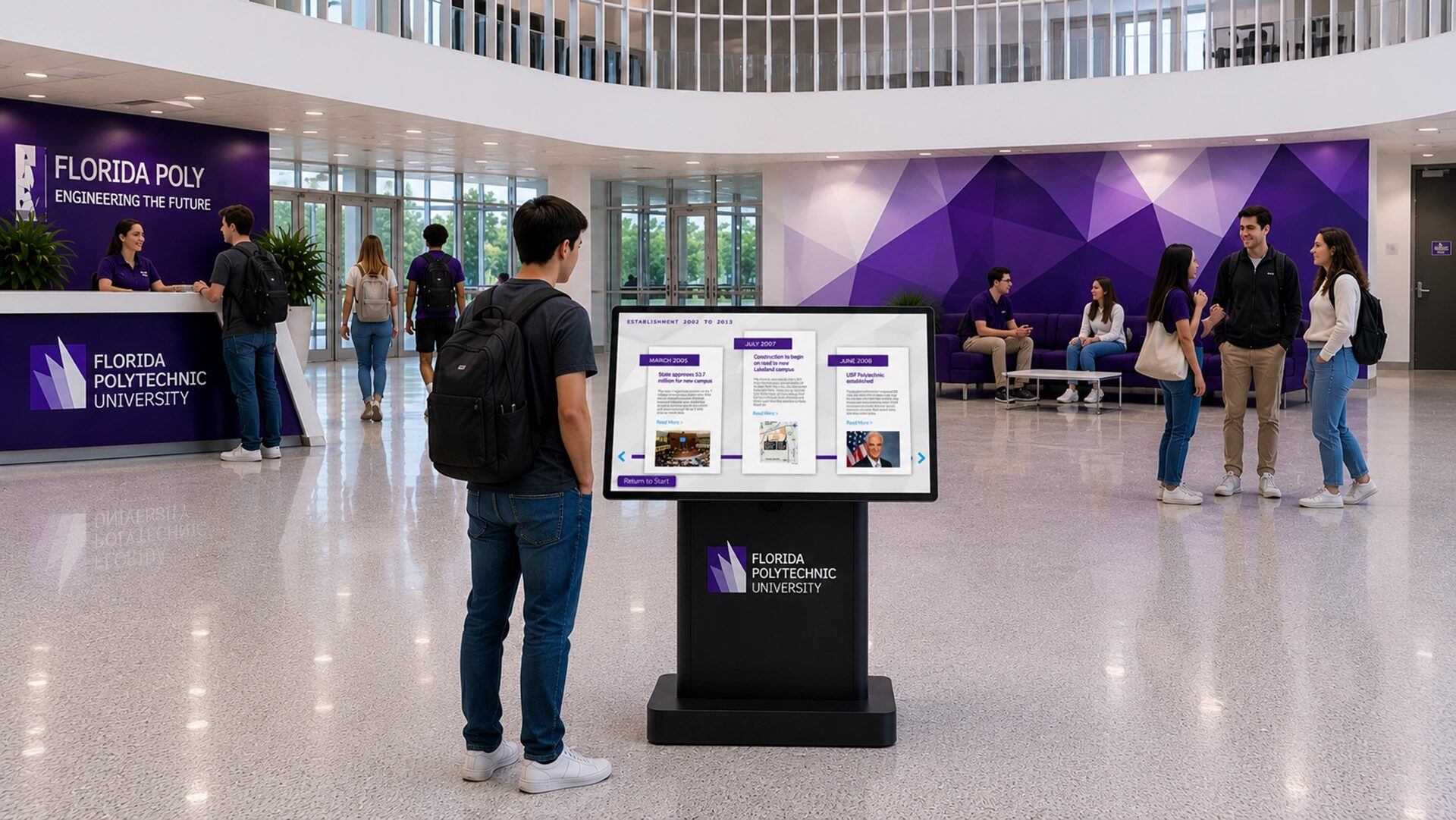
Digital displays are changing the format by solving the classic problem of static history: they allow for instant content updates and limitless scalability as your organization grows. Incorporating digital screens into history walls creates a dynamic centerpiece for viewers accustomed to modern, interactive information.
A digital history wall is a flexible canvas for timelines, videos, donor rolls, and recognition lists. Arreya provides both the physical frameworks and the intuitive digital content management software, empowering your team to update campaigns, leadership changes, mergers, or new inductees instantly—no coding required.
Static vs. digital: what changes and why
The main difference is that static displays offer physical permanence, while digital displays provide limitless flexibility and real-time updates. Museums can change exhibits easily with digital, just by changing the interactive digital content.
| Display Format | Core Strengths | Best Used For |
| Static Displays | Permanence, material presence, and day-to-day durability. | Founding plaques, architectural centerpieces, permanent artifacts. |
| Digital Displays | Flexibility, infinite depth, accessibility, and instant refresh speed. | Searchable alumni lists, rotating employee awards, dynamic videos. |
| Hybrid Displays | Combines engraved plaques, printed graphics, and digital panels. | Comprehensive history walls that need both a physical anchor and updateable data. |
What all successful history displays share
Every successful history display shares a clear purpose, highly curated content, readable structure, and a sustainable plan for future updates. Whether the project is a school history wall, county heritage corridor, corporate timeline, or employee recognition wall, the fundamentals stay the same:
- Clear purpose: Knowing exactly who the display serves and what they should feel.
- Curated content: Understanding that not every photo, document, or artifact belongs on the wall.
- Readable structure: Utilizing clear headlines, captions, eras, and timeline markers.
- Accessibility: Ensuring proper contrast, language options, and comfortable viewing distances.
- Update plan: Having a system (like Arreya’s software) to easily add annual honorees or new facilities.
Designing for the audience, not just the wall
Effective design supports all types of viewers—from quick glancers to deep readers—by prioritizing accessibility and intuitive flow. Students rush between classes, patients may be anxious, and employees may pass by daily; the design must accommodate them all.
Sometimes source files arrive chaotic. Even if your notes come with rough labels like cavnas illustrating, display element worthy, or install pay tribute, Arreya’s team helps turn those raw materials into a beautifully constructed, cohesive combination surrounded by your organization’s rich heritage.
FAQ
How do I know if my organization is ready for a history wall project?
You are likely ready if you are approaching an anniversary, opening a new space, launching a fundraising campaign, or trying to unify multiple locations under one brand story. Having a preliminary list of milestones, archival photos, and an internal sponsor is all you need to start the conversation.
How long does it typically take to plan and install a history wall?
Small digital history walls typically take 8–12 weeks from concept to completion. Larger, multi-wall or multi-location custom physical projects often take 4–6 months, accounting for discovery, design approvals, in-house fabrication, and final installation.
What content should we gather first?
Start by gathering your “anchor” content: key founding dates, leadership photos, high-resolution archival images, yearbooks, press clippings, and mission statements. Arreya’s creative team can help you sort, digitize, and prioritize this content during the design phase.
How do digital history walls handle security and content control?
Modern digital signage software, like Arreya’s platform, utilizes role-based access and cloud security. This ensures that only approved staff can edit or publish content, and updates can be pushed centrally to a single lobby screen or scaled across multiple campus locations instantly.
Can donor recognition be part of a broader history wall?
Yes. Donor recognition seamlessly integrates into history walls through dedicated naming panels, searchable digital donor rolls, or impact timelines that explicitly show how philanthropic giving shaped the organization’s historical milestones.
Final thought
History displays are strategic tools for legacy, pride, and connection. From Loudoun School District to Madison County, Prince George County, Hunterdon Hospital, Kenworth, Caterpillar, and Peterbilt, the format changes but the purpose stays consistent: making history visible.
Explore how a custom, turn-key history display from Arreya can make your organization’s story easier to see, remember, and carry into the future.
Email us at Support@arreya.com or call us at 319-294-6671.