Social and emotional learning (SEL) has moved from supplementary programming to essential infrastructure in K–12 education. As schools navigate ongoing mental health challenges and behavioral concerns, the question isn’t whether to implement SEL—it’s how to make it visible, consistent, and embedded into every corner of campus life.
Key Takeaways
- SEL programs are now core to K–12 education, and schools can strengthen these initiatives by pairing SEL curricula with purposeful digital signage and recognition displays that reinforce lessons beyond the classroom.
- Arreya helps schools turn existing screens and SEL content into always-on reinforcers that support core competencies like self-awareness, social awareness, and relationship skills.
- SEL programs are most effective when implemented systemically—across classrooms, hallways, and common spaces—using data, clear goals, and consistent messaging throughout the school environment.
- Digital and interactive displays support SEL by showcasing student voices, recognizing positive behavior, and sharing mindfulness prompts and coping strategies in real time.
- This article walks through choosing evidence-based SEL programs, planning implementation, and using Arreya digital signage to bring emotional learning into daily school life.
What Are SEL Programs for Schools?
Social-emotional learning (SEL) is the process through which students develop the skills to manage emotions, achieve goals, feel empathy for others, and make responsible decisions. These programs focus on five core competencies: self-awareness, self-management, social awareness, relationship skills, and responsible decision-making.
These competencies align with the CASEL framework, which has shaped state SEL standards across the U.S. Research from 12 independent meta-analyses indicates that SEL programs have a consistent, reliable effect on students’ social, emotional, and academic outcomes. The National Commission on Social, Emotional, and Academic Development concluded that these competencies are essential for success in school, careers, and life.
SEL Development Across Grade Levels:
- PreK–2: Identifying feelings through emotion wheels and stories.
- Grades 3–5: Conflict resolution via peer mediation and role-playing.
- Middle School: Identity exploration and resisting peer pressure.
- High School: Ethical decision-making and career readiness through goal-setting.
For schools today, SEL addresses not only student well-being but also school climate, safety, and community trust—creating a natural bridge to how communication and digital signage support these goals.
Systemic Implementation of SEL in Schools
Systemic implementation means integrating SEL across classroom instruction, schoolwide practices, and district policy—not treating it as a once-a-week lesson. Research indicates that SEL programs are more effective when they are reinforced throughout the entire school environment.
Core steps for systemic SEL implementation:
- Form a cross-functional SEL team (administrators, counselors, teachers, and parents).
- Audit existing practices and map SEL to strategic plans.
- Set measurable goals (e.g., reducing office discipline referrals).
- Use data dashboards tracking SEL outcomes alongside academics.
- Plan regular staff professional development and family engagement.
Arreya supports systemic implementation by providing a centralized digital content hub. This allows schools to push consistent SEL messaging to lobbies, cafeterias, and hallways while allowing quick updates as data and priorities evolve.
Choosing the Right SEL Program for Your School
The key is finding evidence-based options that fit your student demographics and existing initiatives. Effective implementation requires substantial training and support for teachers, which is why a visual reinforcement system is so critical.
| Criteria | What to Look For |
| CASEL Alignment | Covers all five core competencies. |
| Grade Coverage | PreK–12 progression with age-appropriate content. |
| Evidence Base | RCTs, quasi-experimental studies, ESSA Tier 1-2 ratings. |
| Flexibility | Adaptable for special ed and multilingual learners. |
Leading programs like Second Step and Positive Action provide turnkey lessons, but they are most successful when they incorporate a variety of instructional methods—stories, songs, and discussions. Arreya partners with schools already using these curricula by giving them a flexible visual platform to extend these lessons beyond classroom walls.
Digital Signage: A Powerful Tool for SEL Reinforcement
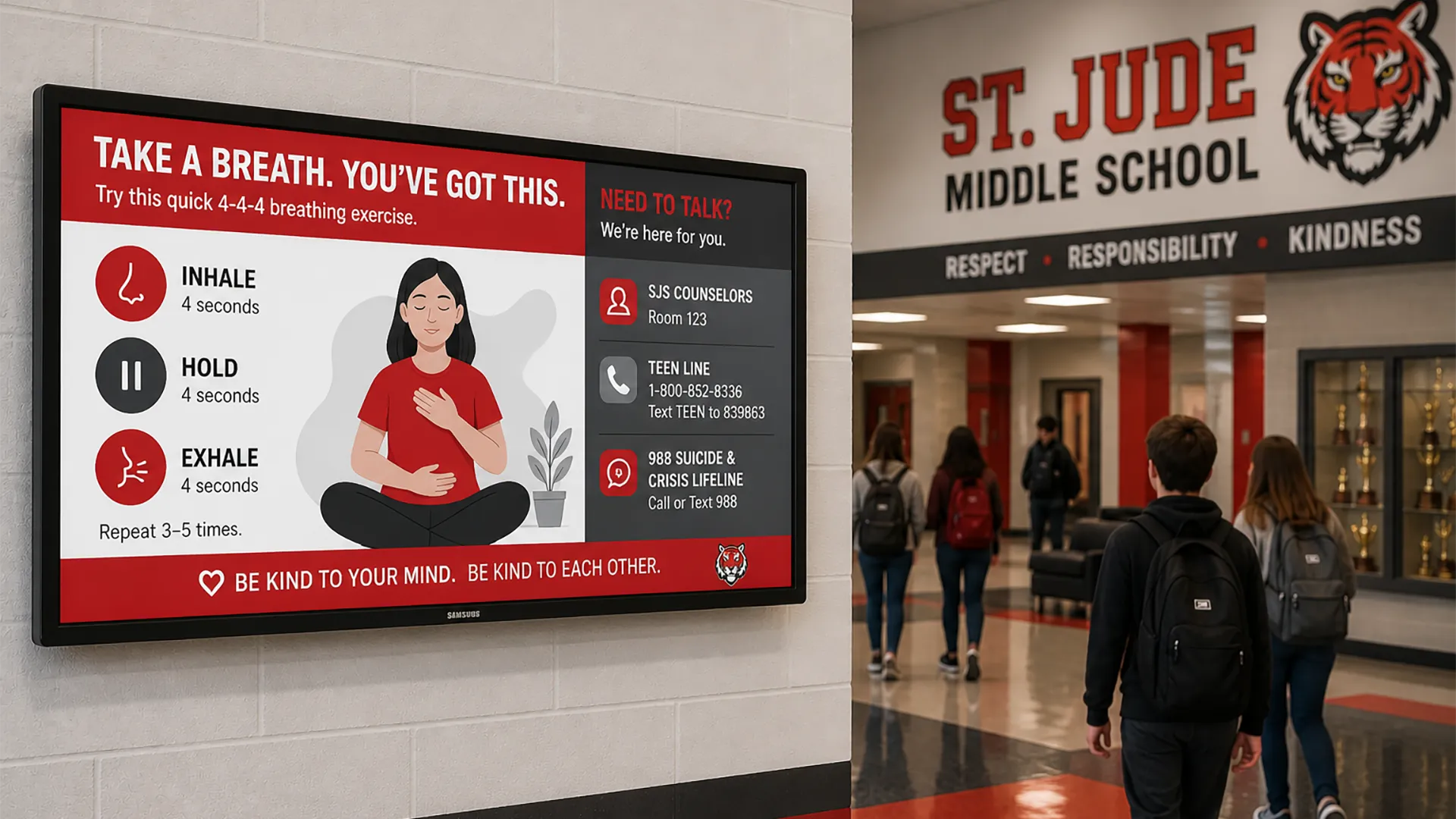
Hallways, lobbies, and cafeterias are untapped SEL environments. Arreya transforms these everyday spaces into constant reinforcers of school values, supporting students’ social and emotional skills development throughout the day.
SEL content schools can display on Arreya screens:
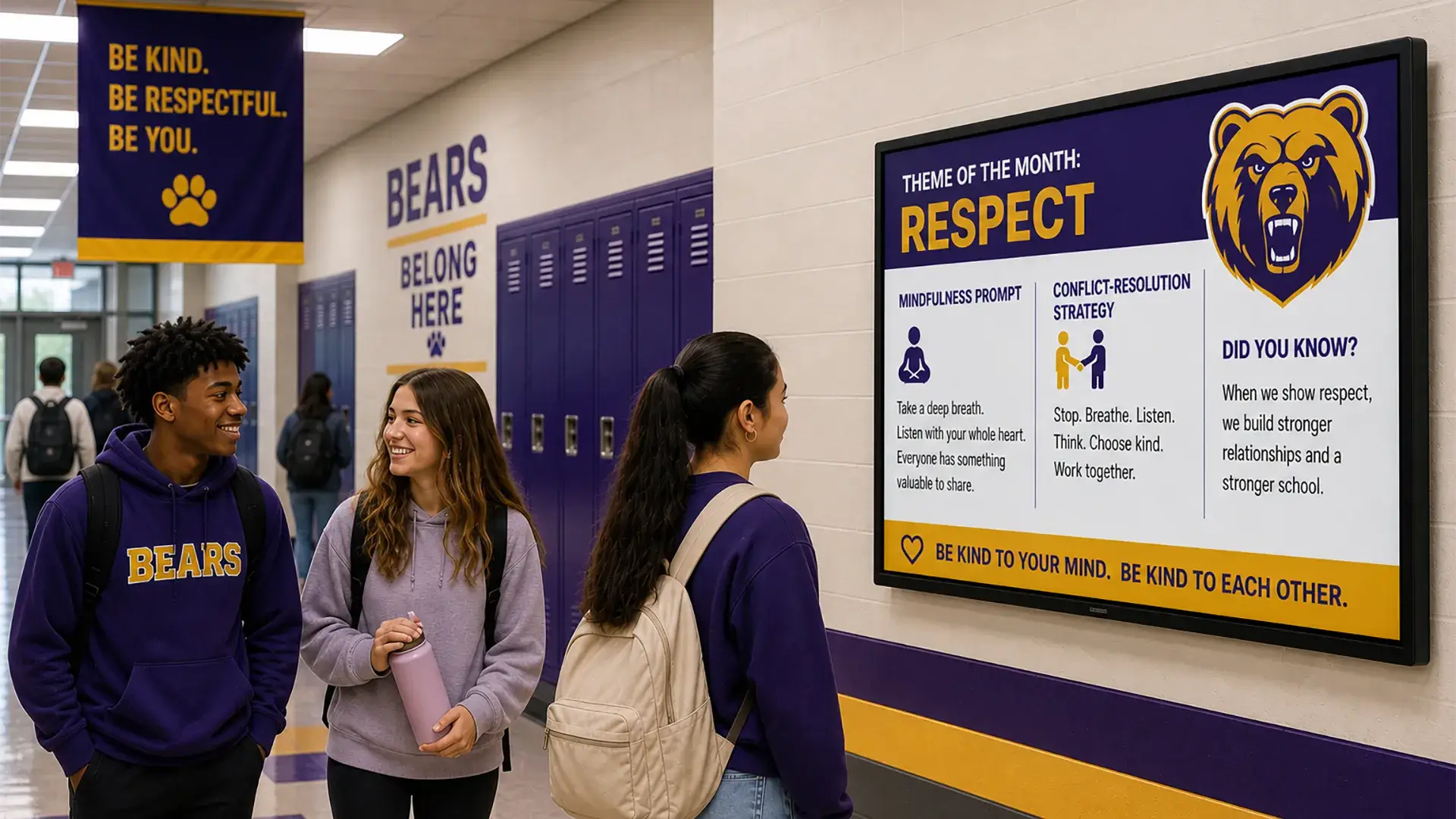
- Weekly SEL themes (e.g., “Empathy Week” or “Growth Mindset”).
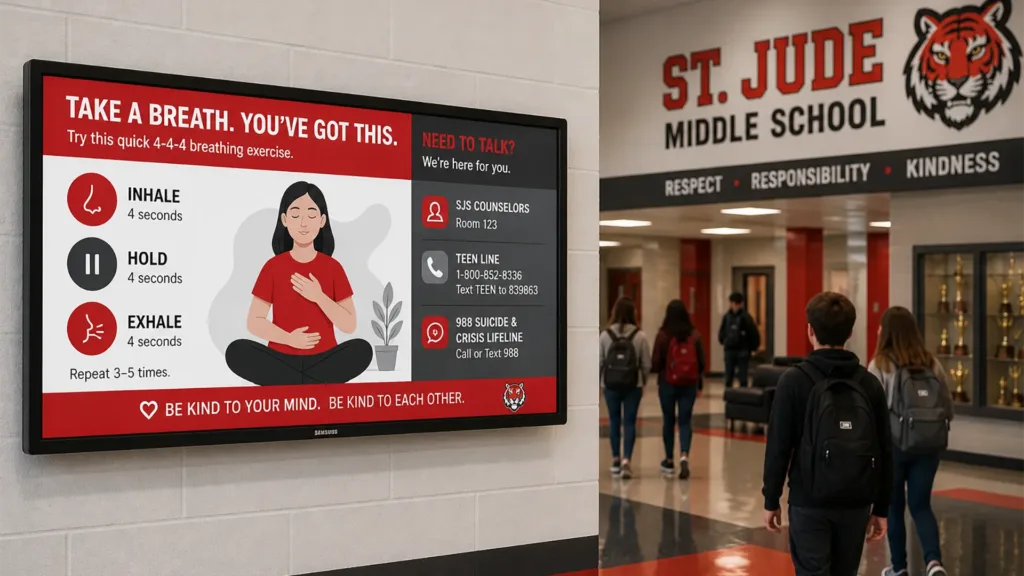
- Breathing exercises and mindfulness prompts before exams.
- Conflict-resolution steps and problem-solving strategies.
- PBIS behavior matrices linking expectations to SEL competencies.
Interactive displays enable student voice and engagement:
- Student-created videos demonstrating self-regulation techniques.
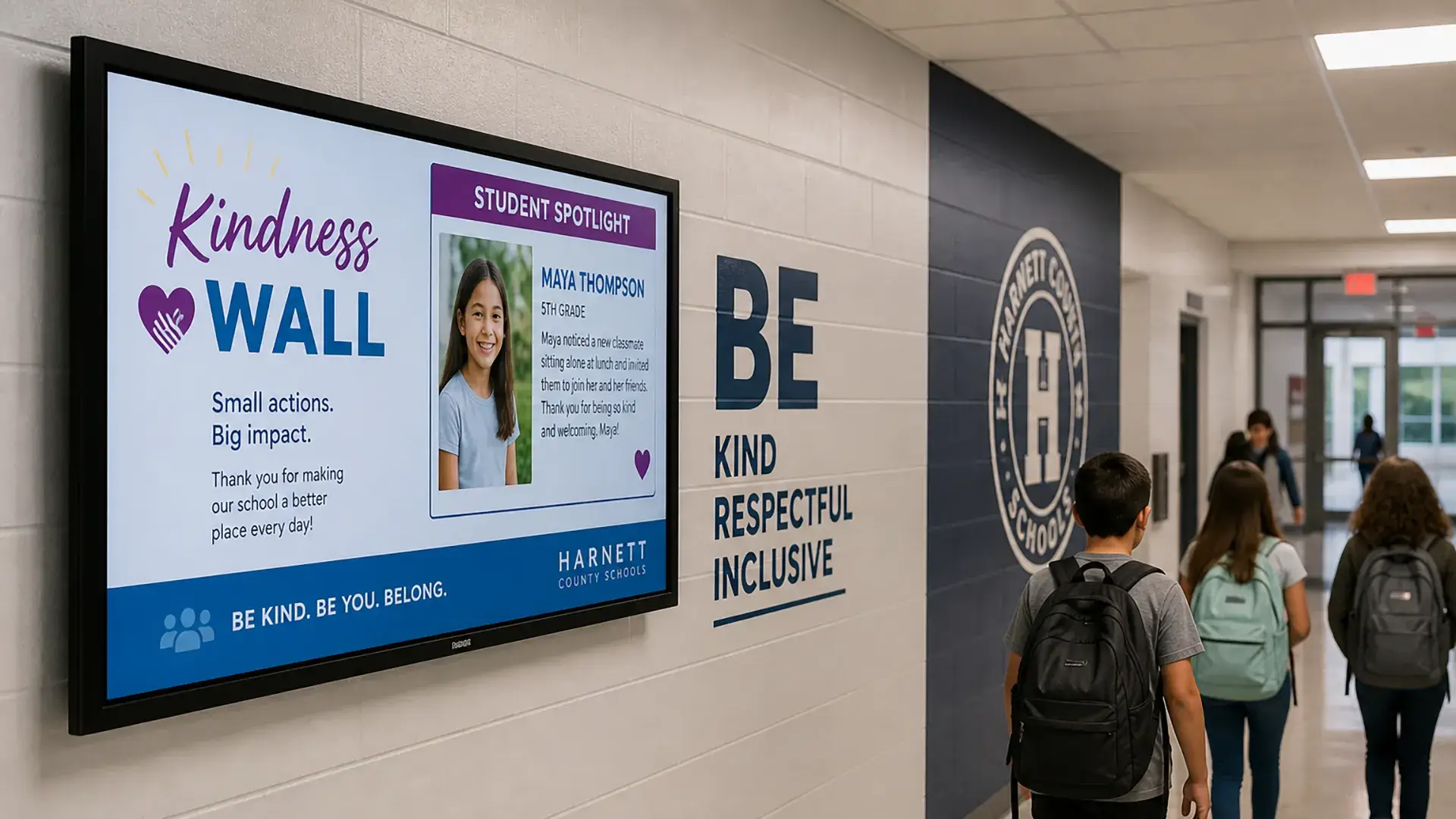
- Digital “kindness walls” where peers recognize each other.
- Rotating spotlights on resilience stories.
Arreya’s cloud-based Creative Studio lets counselors and SEL coordinators update screens in real time—posting mindfulness prompts during testing weeks or sharing community mental health resources instantly.
Strengthening School Culture through Student Achievement Displays
Beyond the classroom, digital signage serves as a powerful medium for building a positive school climate. When schools celebrate character development, collaborative projects, and individual growth, they foster a deep sense of belonging—a core outcome of successful SEL programs. Arreya allows you to turn high-traffic areas into dynamic centers of school pride.
Schools use Arreya to elevate the student experience by displaying:
- Peer-to-Peer Appreciation: Digital “Shout-Out” boards where students and staff can recognize acts of kindness, empathy, and resilience.
- Student Voice & Leadership: Showcasing student-led initiatives, club activities, and service projects that demonstrate social awareness.
- “Growth Mindset” Spotlights: Highlighting students who have overcome challenges or mastered new skills, reinforcing the value of persistence.
- SEL Champions: Recognizing staff and faculty who model emotional intelligence and support student well-being.
Real-Time Engagement
Because Arreya is a full-service partner, these displays are designed to be managed by the people who know the students best—counselors, activities directors, and student leaders.
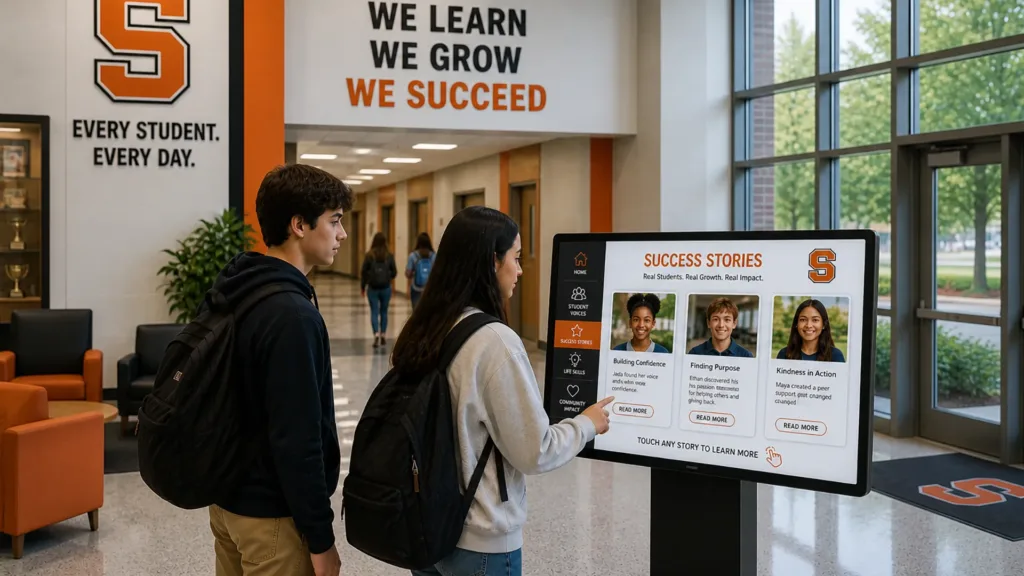
- Interactive Storytelling: Use touch-screen kiosks to allow students to browse through “Success Stories” or view digital galleries of student artwork and projects.
- Instant Updates: Unlike static posters, Arreya’s cloud-based Creative Studio allows you to celebrate a “win” the moment it happens, keeping your school’s visual culture fresh and relevant.
- A Sustainable Environment: Transitioning from paper flyers to digital displays reduces waste and ensures that your most important SEL messages are never buried under outdated announcements.
By merging artful design with easy-to-use technology, Arreya helps schools create an environment where every student feels seen and valued, turning everyday hallways into a constant reminder of the school’s mission and values.
Implementation Steps: Launching SEL and Digital Signage
Schools can align SEL expansion with technology plans or capital campaigns. Arreya works with school facilities, IT, and development teams from concept design through software setup and long-term support.
High-level sequence:
- Form a joint team – SEL coordinators, IT, and administration.
- Audit existing displays – Evaluate current messaging and screen locations.
- Build a content calendar – Tie rotating content to your SEL curriculum’s scope.
- Assign roles – Use Arreya’s unlimited user seats to let counselors manage SEL tips while the front office manages school-wide announcements.
Measuring Impact: SEL Outcomes and ROI
Research shows that SEL participants perform roughly 11 percentile points higher on academic tests. Furthermore, studies estimate $11 saved per $1 invested in SEL through lowered remediation costs and improved school climate.
Data to track:
- Attendance trends and discipline referral rates.
- Climate survey results (e.g., Panorama Education).
- Engagement metrics via Arreya (QR code scans for mental health resources).
FAQ
- How can we align our existing SEL curriculum with new digital signage? Map your SEL scope and sequence for the year, then create a content calendar in Arreya that mirrors each unit—such as “conflict resolution” in November.
- Do we need a large technology budget? Schools can start small by repurposing existing displays. Arreya’s cloud-based platform allows you to scale at your own pace as grant or PTO funding becomes available.
- How long does it take to install an Arreya SEL display? Timelines vary, but many school installations complete within a few months. Our team handles everything from software templates to hardware installation to ensure a “zero-lift” experience for your IT department.
How Arreya Supports SEL-Focused Schools
Solutions for your campus:
- Interactive digital recognition walls for student achievement.
- Campus-wide digital signage networks managed from one central dashboard.
- Custom enclosures designed to fit your school’s unique aesthetic.
Arreya helps make SEL integration visible, beautiful, and sustainable.
Ready to turn your screens into SEL powerhouses?
Schedule a consultation with Arreya today and see how we can help you build a more connected school community.